Registration and Badges
Registration features help attendees connect their mobile account to an event registration and show QR badges where enabled. Attendees can register through the mobile app, through a public web form, or through WhatsApp.
Event Registration Actions
When registration is open and the attendee does not already have a registration, the event home can show a Register Now action. The action depends on the organizer's setup:
- Open an external registration link.
- Complete an in-app registration form.
- Claim an existing imported registration.
If no registration action appears, the event may not use mobile registration or registration may not be open.
My Registrations
My Registrations lists registration records connected to the signed-in user. Attendees can search, filter by registration status, refresh, and open registration details.
Claim Registration
Imported attendees may need to claim their registration.
Typical flow:
- Select the registration-enabled event.
- Enter registration number and email.
- Request OTP.
- Verify OTP.
- Open registration details and QR badge.
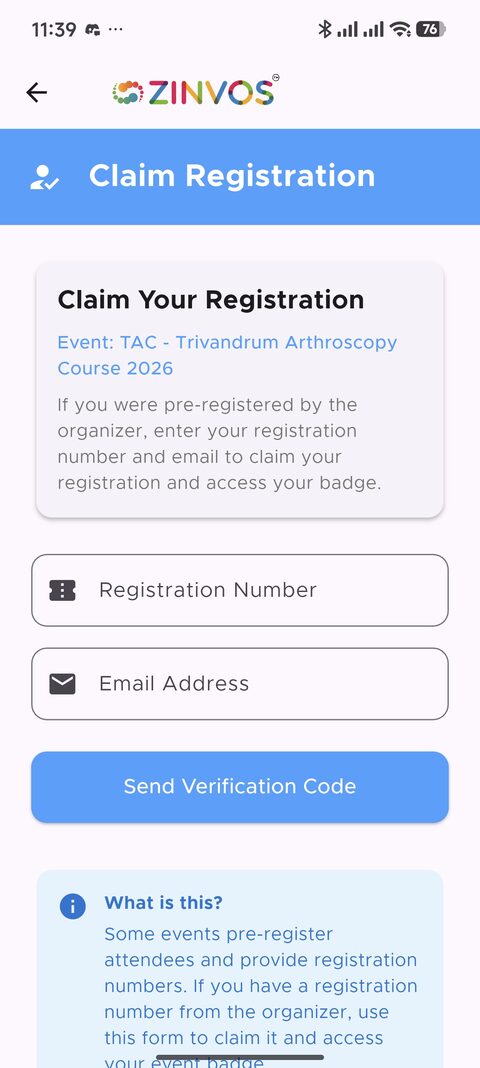
Attendees can claim an imported registration by entering the registration number and email shared by the organizer.
If the organizer allows OTP reclaim transfer, an attendee may be able to transfer an already-claimed registration to their current account after verifying by OTP. Support teams should confirm identity before advising this flow.
In-App Registration Form
Some events let attendees submit a registration form inside the app. The attendee opens the registration action, completes the required fields, submits the form, and then returns to My Registrations or registration details when the record is available.
If the event uses an external registration site instead, the app opens the organizer-provided link rather than showing an in-app form.
Registration Details and QR Badge
Registration details show attendee registration information and provide QR badge access. The badge displays the event identity (event name and branding), so attendees can see which event a badge belongs to. The full-screen badge is used for check-in or event access where configured.
Payment Required Events
Paid registration is currently supported through the web and WhatsApp payment flows. If payment is required, follow the payment instructions provided by the organizer or the WhatsApp assistant and complete checkout in the browser.
WhatsApp Registration
When WhatsApp is enabled for an event, attendees can register by messaging the event's WhatsApp number. The WhatsApp assistant guides them through discovery, registration via Meta Flow, and ticket delivery. See WhatsApp Administration for details.
Legacy QR Flow
Some events may use an older QR flow instead of registration-enabled badges. In that case, the app can ask the user to confirm details before showing QR access.
Organizer Support Notes
- If claim fails, confirm registration number and email match the imported admin record. Check alternate email if the attendee uses more than one email address.
- If OTP is not received, confirm the email or mobile contact on the record.
- If QR badge is missing, confirm the user is signed in and the event uses registration-enabled badges.
- If payment is pending, confirm completion with the registration channel or organizer.
- If the wrong person claimed a registration, use admin registration tools to investigate claim, unclaim, or OTP reclaim transfer options.