Quizzes, Polls, and Live Quiz
Quizzes and polls are used for attendee engagement. Standard quizzes and polls can be answered independently, while live quizzes are controlled by an admin host in real time.
Standard Quizzes
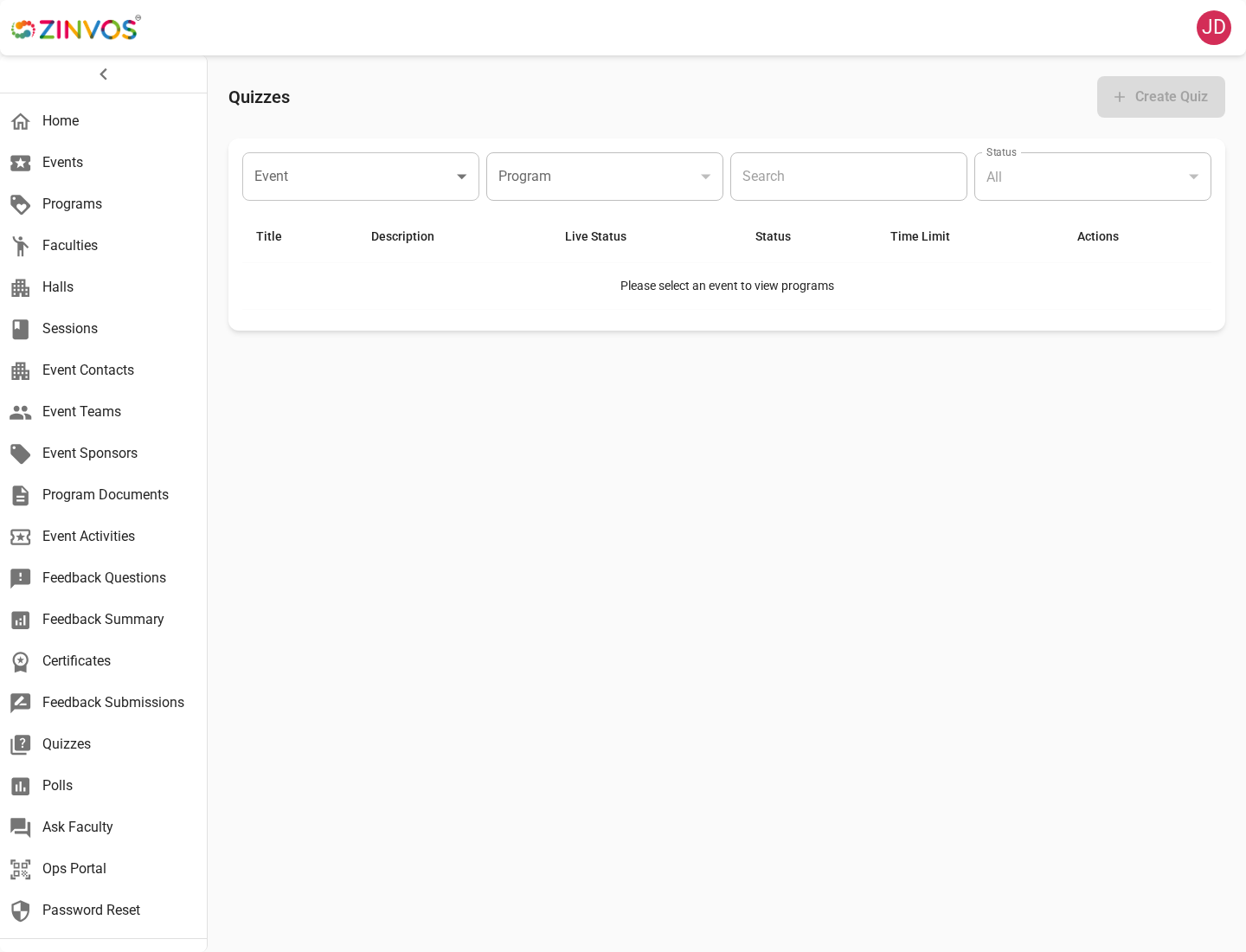
Use quiz setup to create the quiz record, then add questions and options in the quiz builder.
Organizers should confirm:
- Quiz title and event or program association.
- Questions are in the intended order.
- Correct options are marked where scoring is used.
- Required questions are intentional.
- Option text and option images are readable on mobile.
Live Quiz Host Console
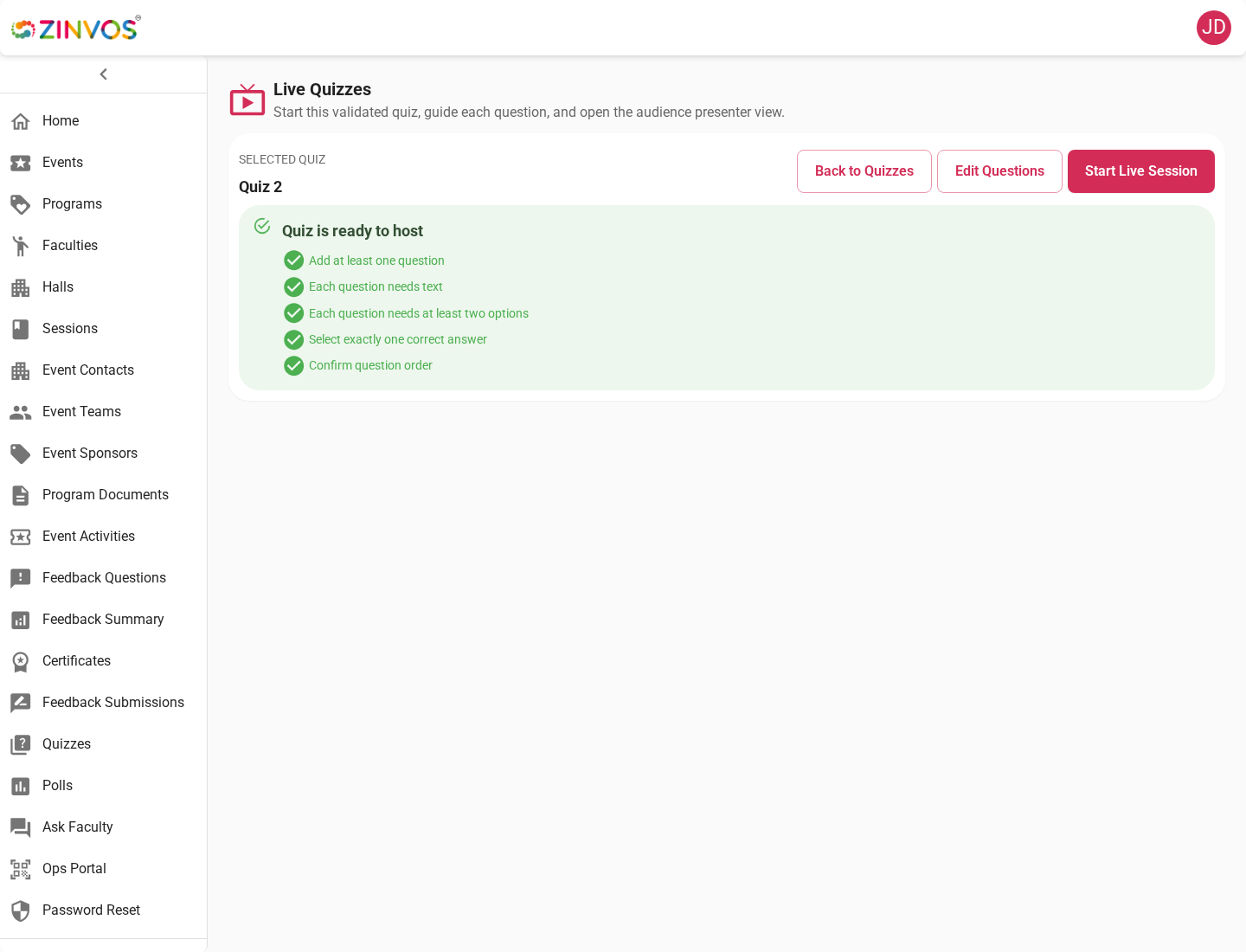
Live quiz hosting controls the active state attendees see over websocket in the mobile app. The host starts the session, opens questions, closes answering, shows results, shows leaderboard, and ends the quiz.
Recommended host checklist:
- Create the quiz and questions before the session.
- Confirm attendees are signed in and have stable network access.
- Open the live quiz host view before presenting.
- Start the live quiz when the room is ready.
- Advance one question at a time.
- Show results or leaderboard at the intended moments.
- End the quiz only when final results should be locked.
Presenter View
Presenter view is designed for display on a projector or stage screen. It omits normal dashboard chrome and focuses on the live question, results, leaderboard, or final state.
Polls
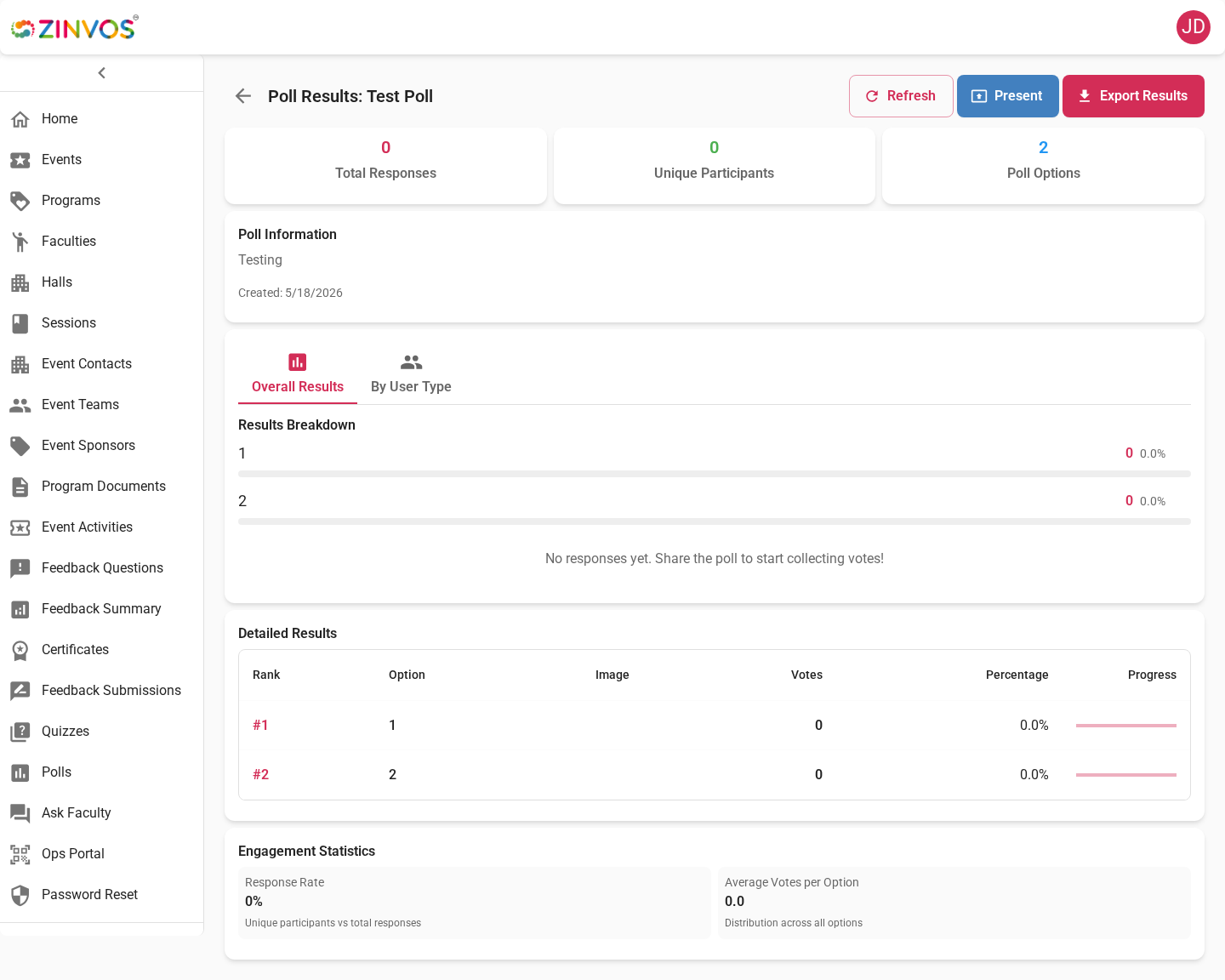
Polls collect attendee opinion or feedback. Polls can be linked from sessions, and mobile attendees may see a poll icon on a session card.
Poll result behavior depends on configuration. Some results appear only after the attendee votes.
Attendee Support Notes
- Standard quiz users can move through questions and submit answers from the mobile app.
- Poll users may select one or multiple options depending on setup.
- Live quiz users must stay connected while the host controls the flow.
- If a live quiz appears stuck, ask the attendee to keep the screen open and wait for the host to advance.
- If websocket connection is interrupted, the mobile app shows reconnecting states and attempts to recover.
Related docs: Mobile Quiz, Polls, and Live Quiz, Live Quiz Workflow.